
Try before you buy: screenshot it, see it on you
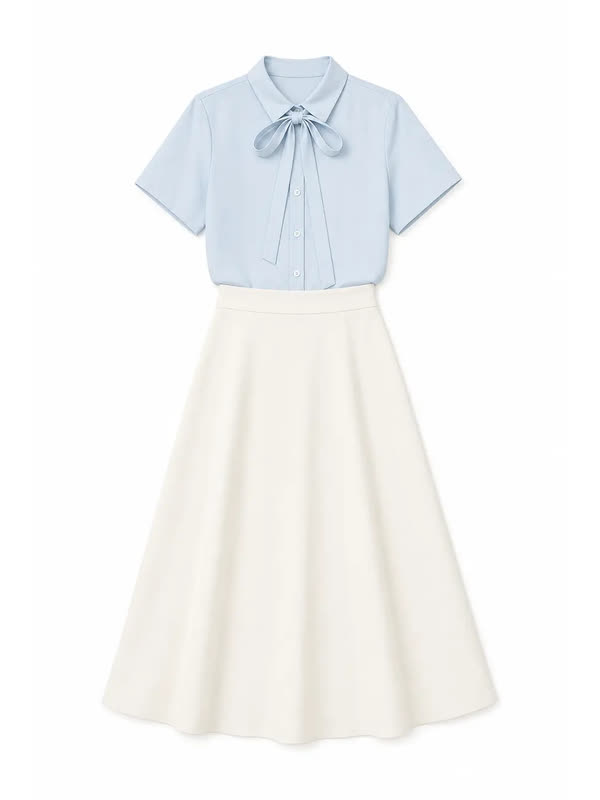
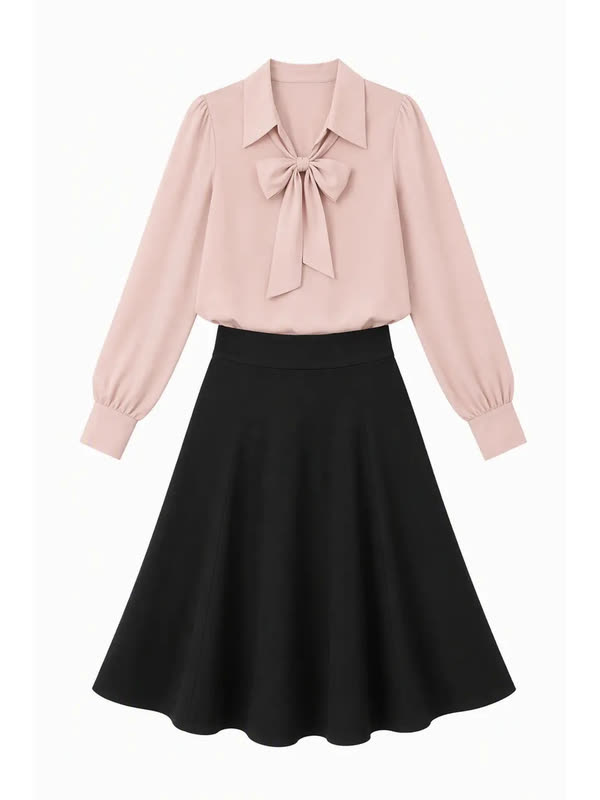
The most common online-shopping regret is "it looked great on the model, not on me". Wear.AI accepts shopping-app screenshots as garment images, whether a white-background product shot or an on-model photo, and puts the item on your own portrait so you can check the colour and cut.
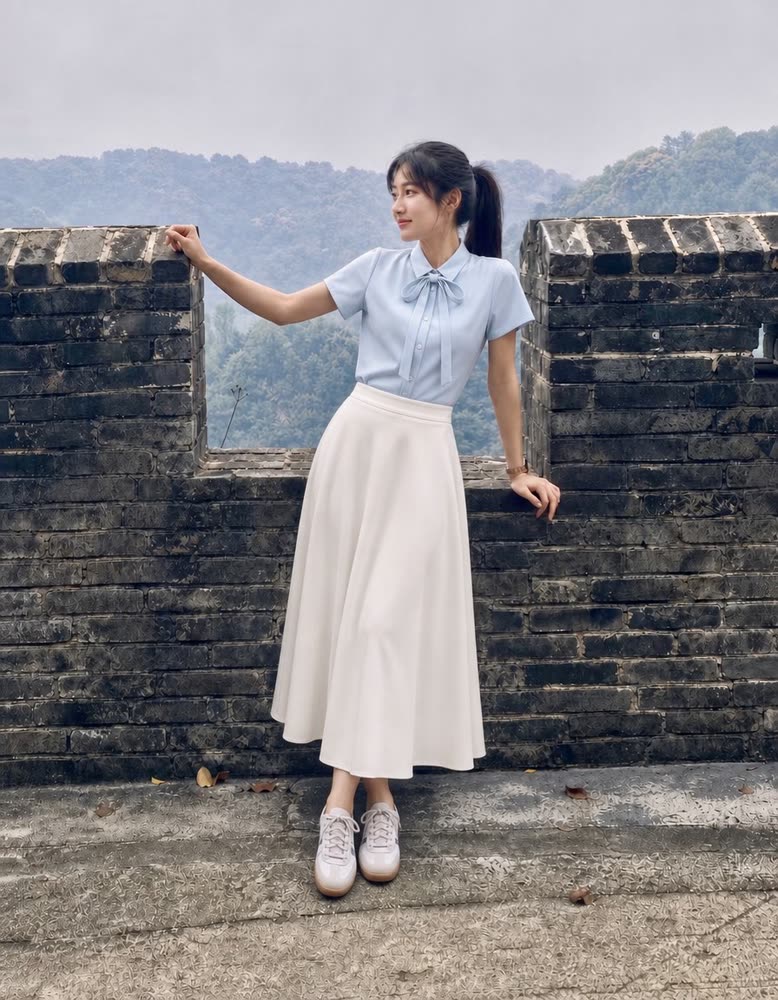
The four examples below are actual results made from white-background products and on-model photos, including a light blue tie-neck shirt with an ivory skater skirt and a brown knit polo with beige wide-leg trousers.


Actual results
 Photo
 Try-on
 Photo
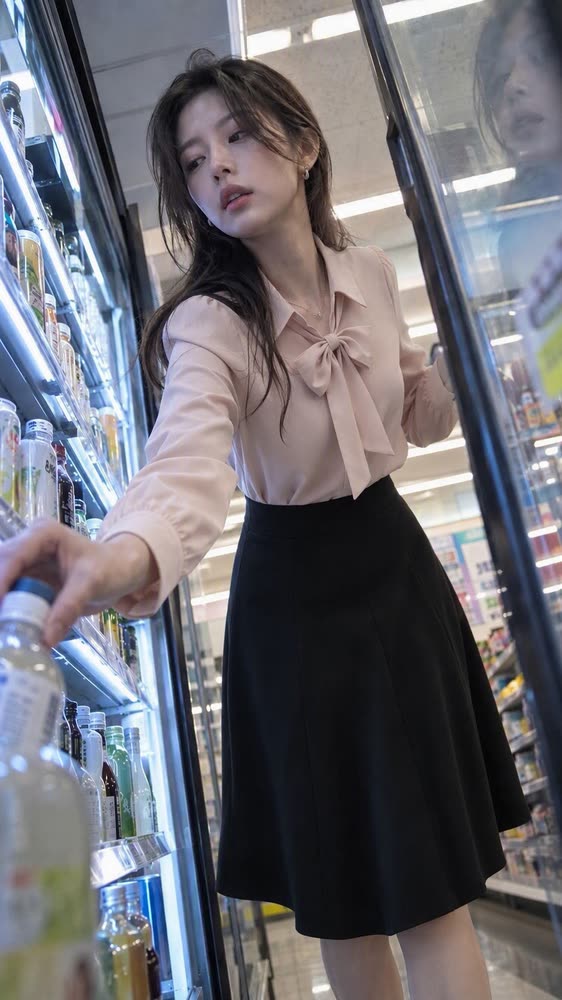 Try-on
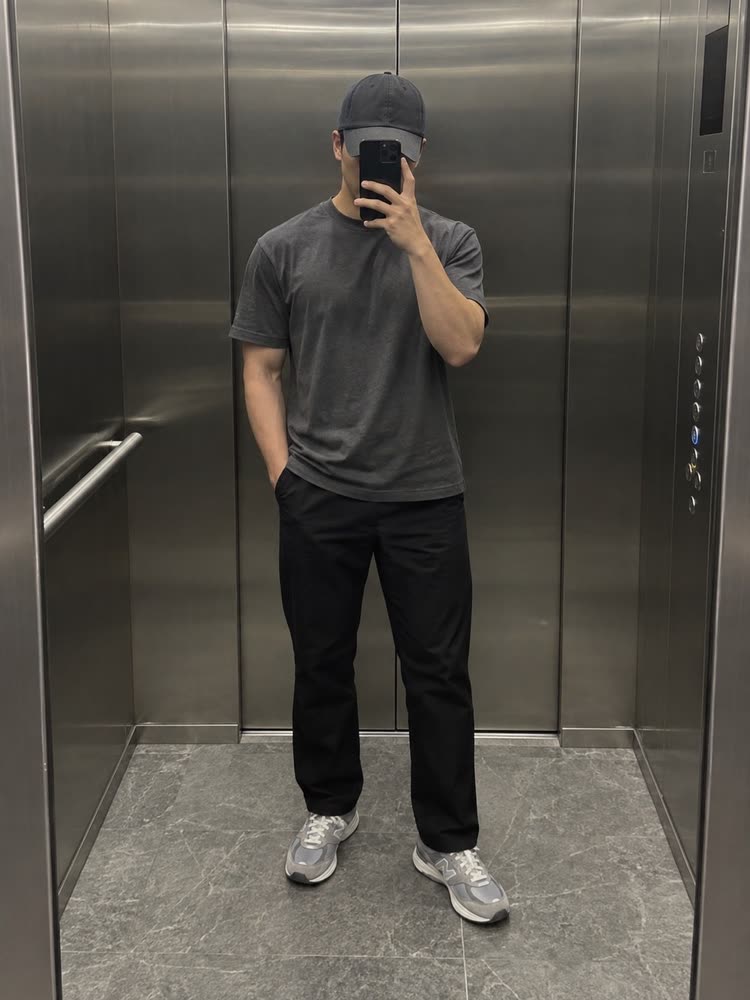 Photo
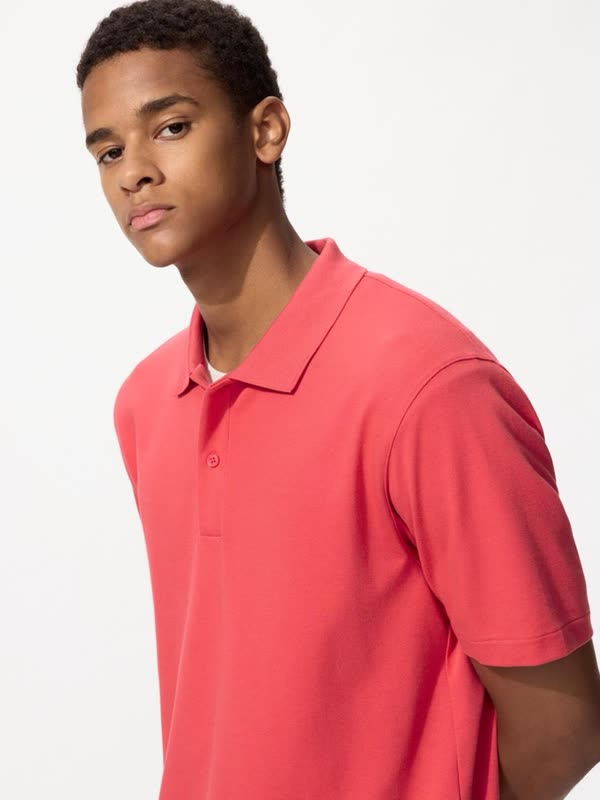
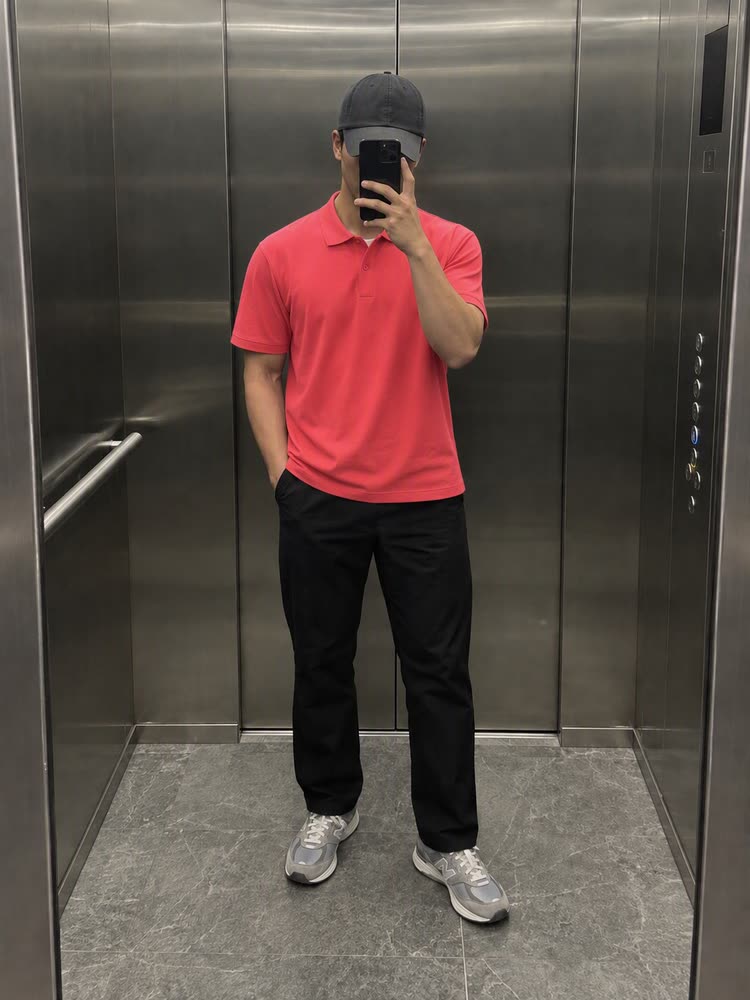 Try-on
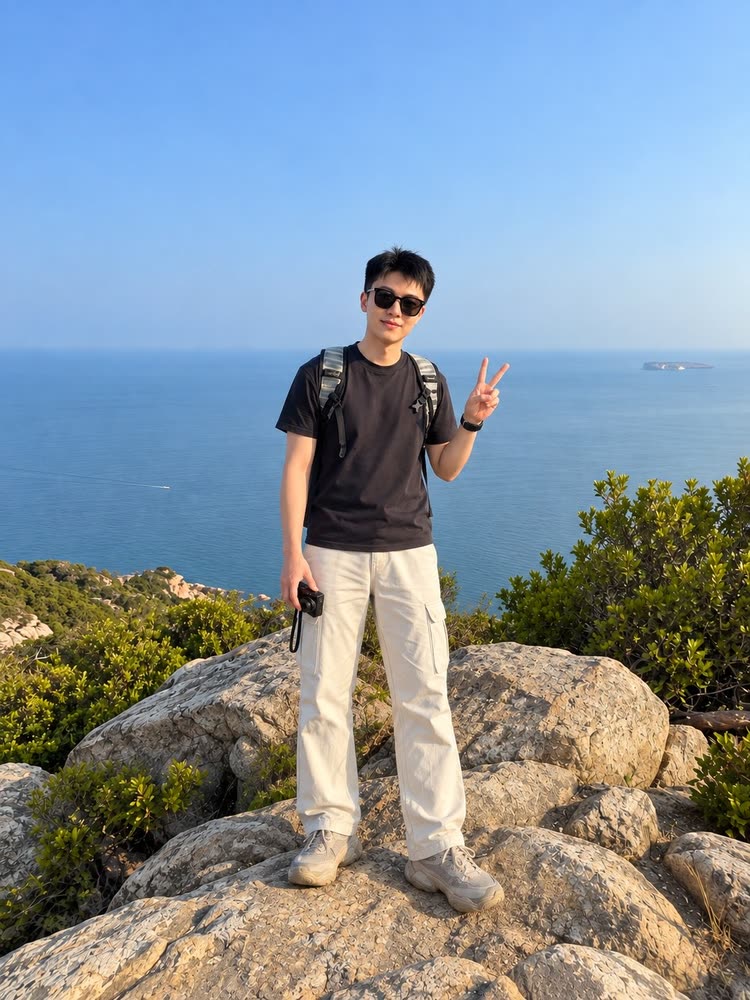 Photo
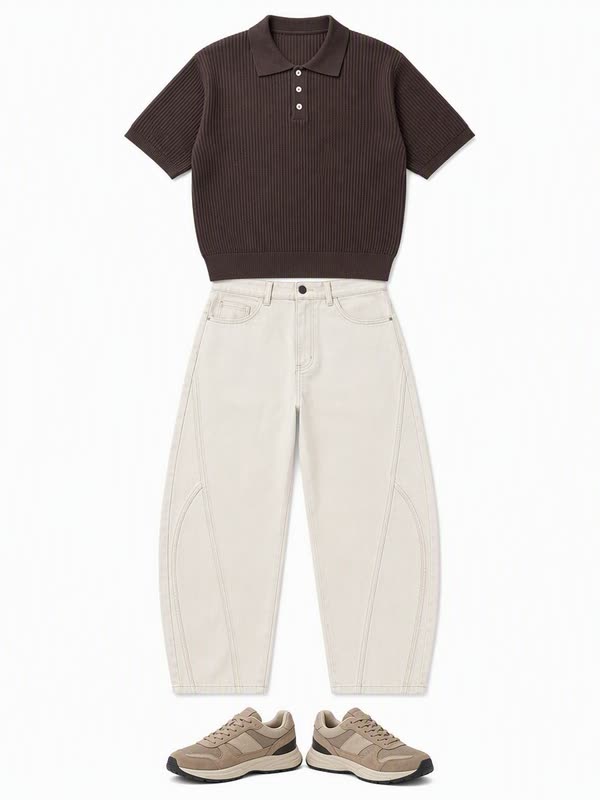
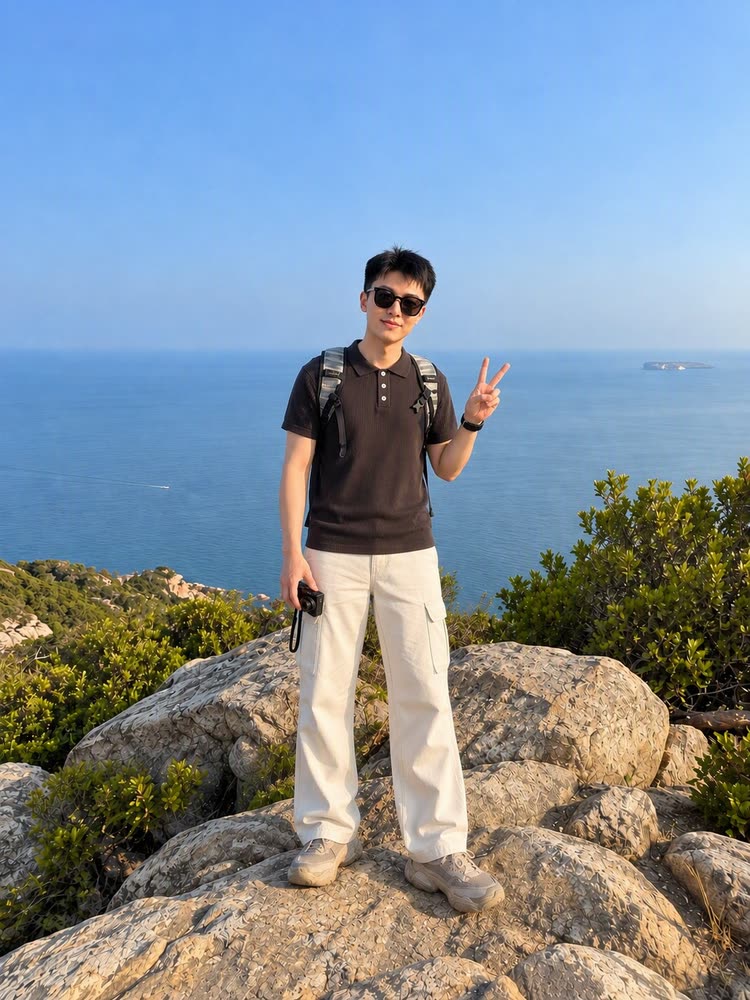 Try-on
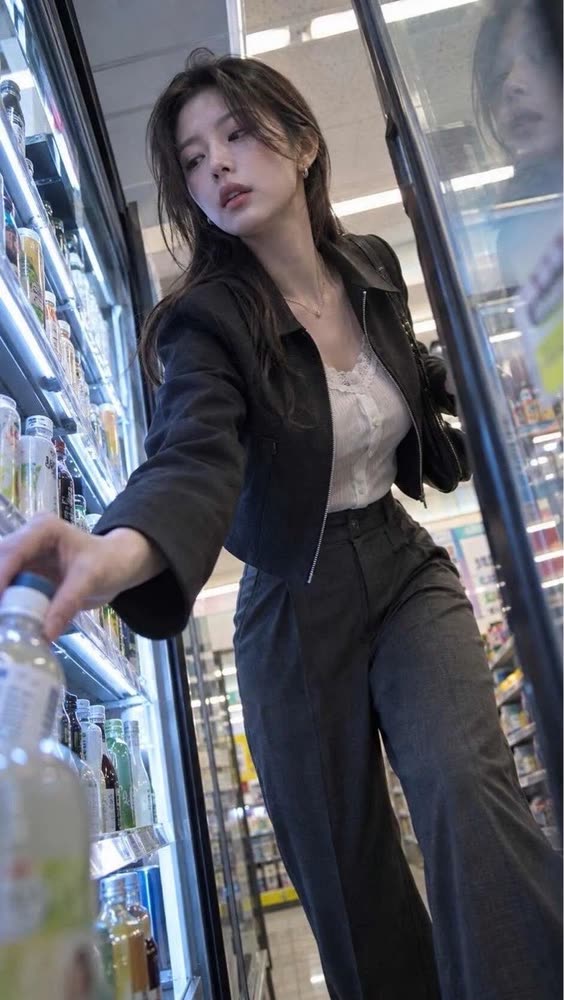
All of the above are actual Wear.AI results. The people are AI-generated sample models and the images are not edited afterwards.
Tips for screenshot try-ons
- Crop the whole garment and leave out prices and labels for a cleaner result.
- Screenshot each colour of the same item and try them separately; it beats squinting at swatches.
- For separates, try the top and bottom individually, or use an on-model photo of the full outfit.
- Save the result you like, then check the size chart again before ordering.
Garment images that work
- Product photos and listing screenshots from shopping apps
- On-model photos and street-style shots
- A photo you take of the garment yourself
Three steps
- Upload the garment you want to try
- Pick your own portrait
- Generate, swipe to compare, save the one you like
AI results can differ from how a garment looks when worn and cannot measure size or guarantee fit. Use the seller's size chart.
FAQ
Does text or a price tag in the screenshot matter?
It can. Crop the garment itself as fully as possible and leave out page text and labels.
White background or model photo: which works better?
Both are supported, and the examples include both. The more complete and clear the garment, the closer the result.
Can it tell me if the size is right?
No. Results are for colour, style and pairing. Use the seller's size chart and a real fitting for size.